



Step 1: Create a New Collection
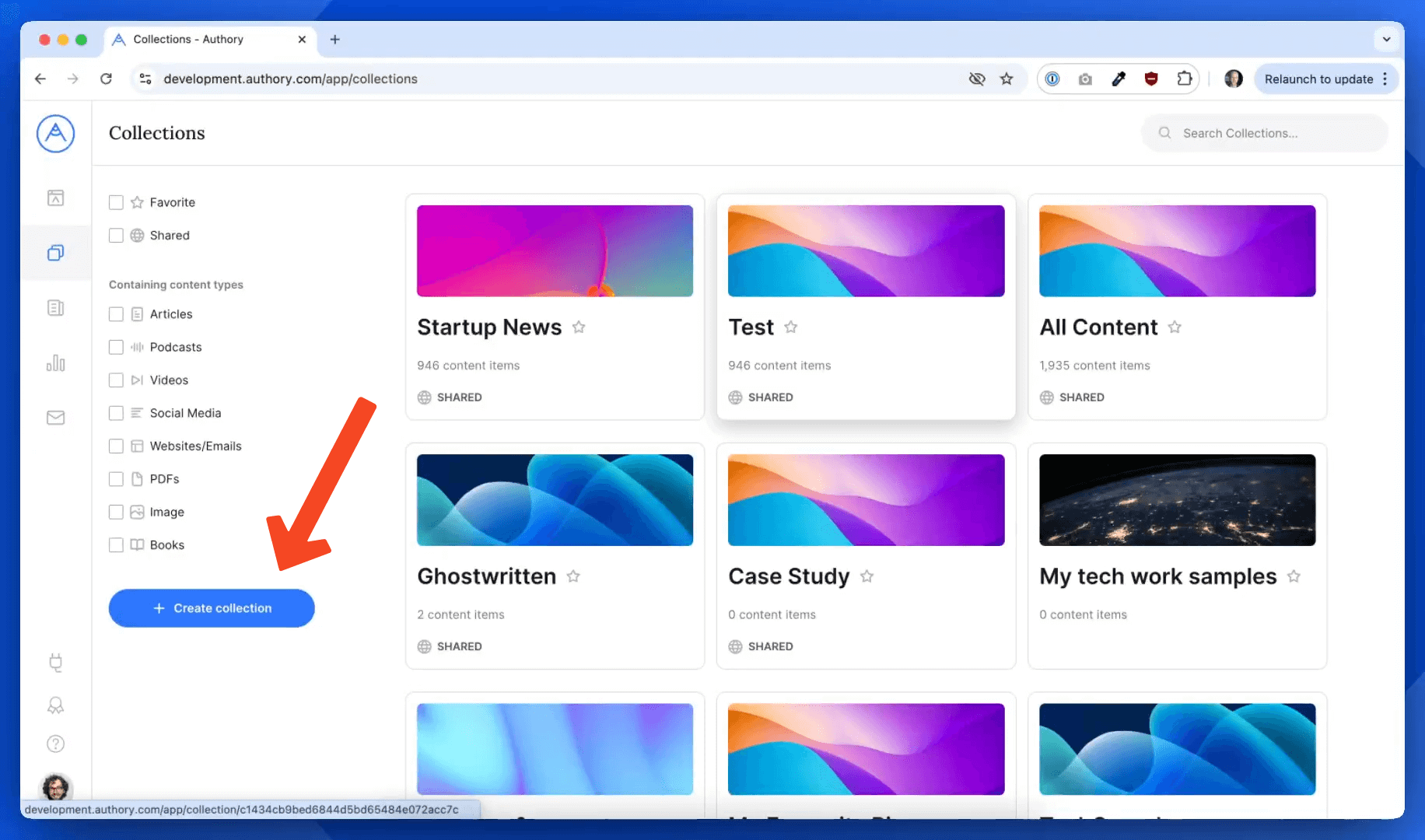
Go to the Collections tab in your dashboard and click Create Collection.
Name your collection (e.g. My Work Samples). This collection doesn’t have to be part of your public portfolio, you’re free to use it privately.
Step 2: Add Content to the Collection
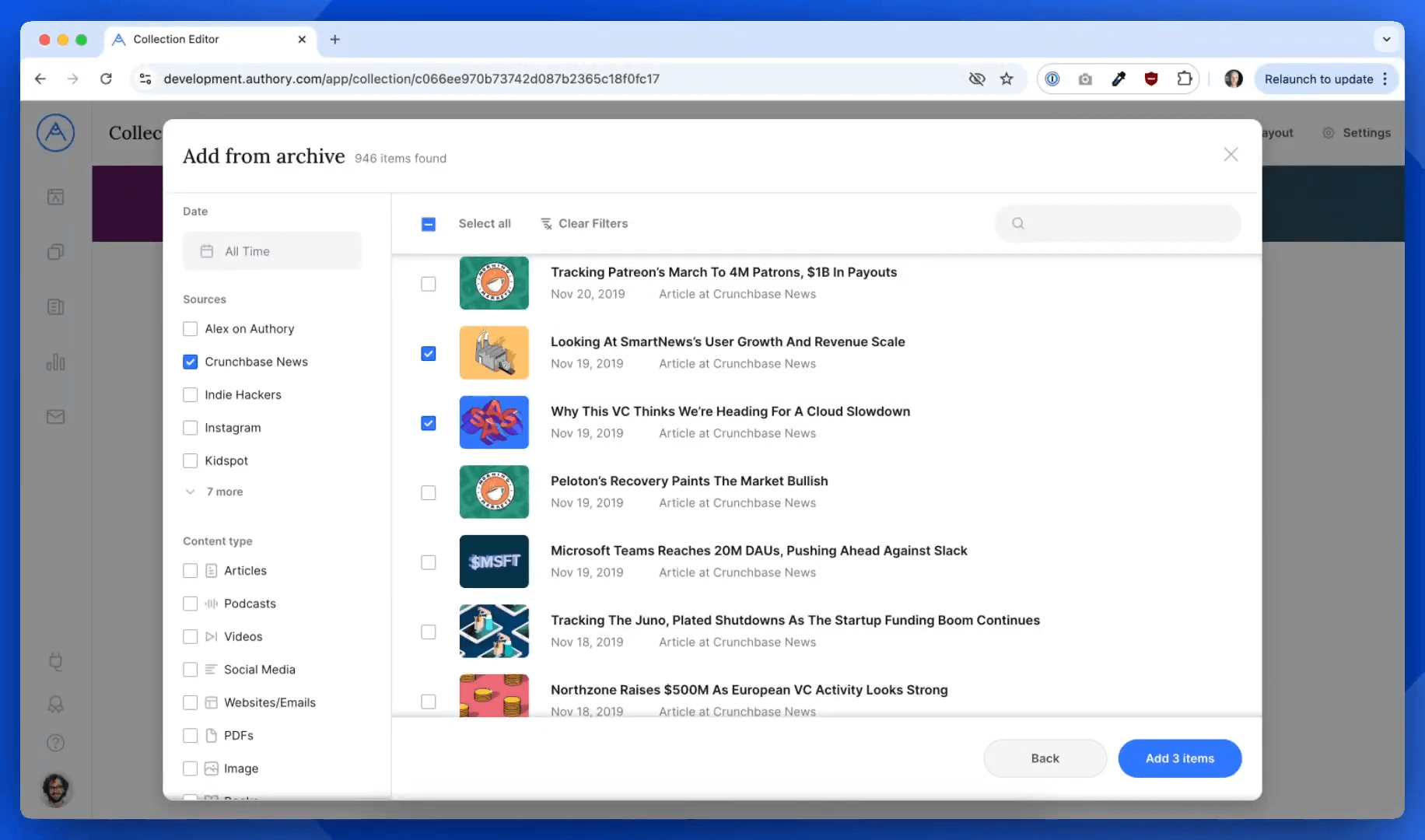
Once the collection is created, simply add your work samples.
Either import new content or select items from your existing Authory archive.
For example, you might add several articles from a specific publication or on a specifci topic that you want to share privately.
Step 3: Keep the Collection Off Your Public Portfolio
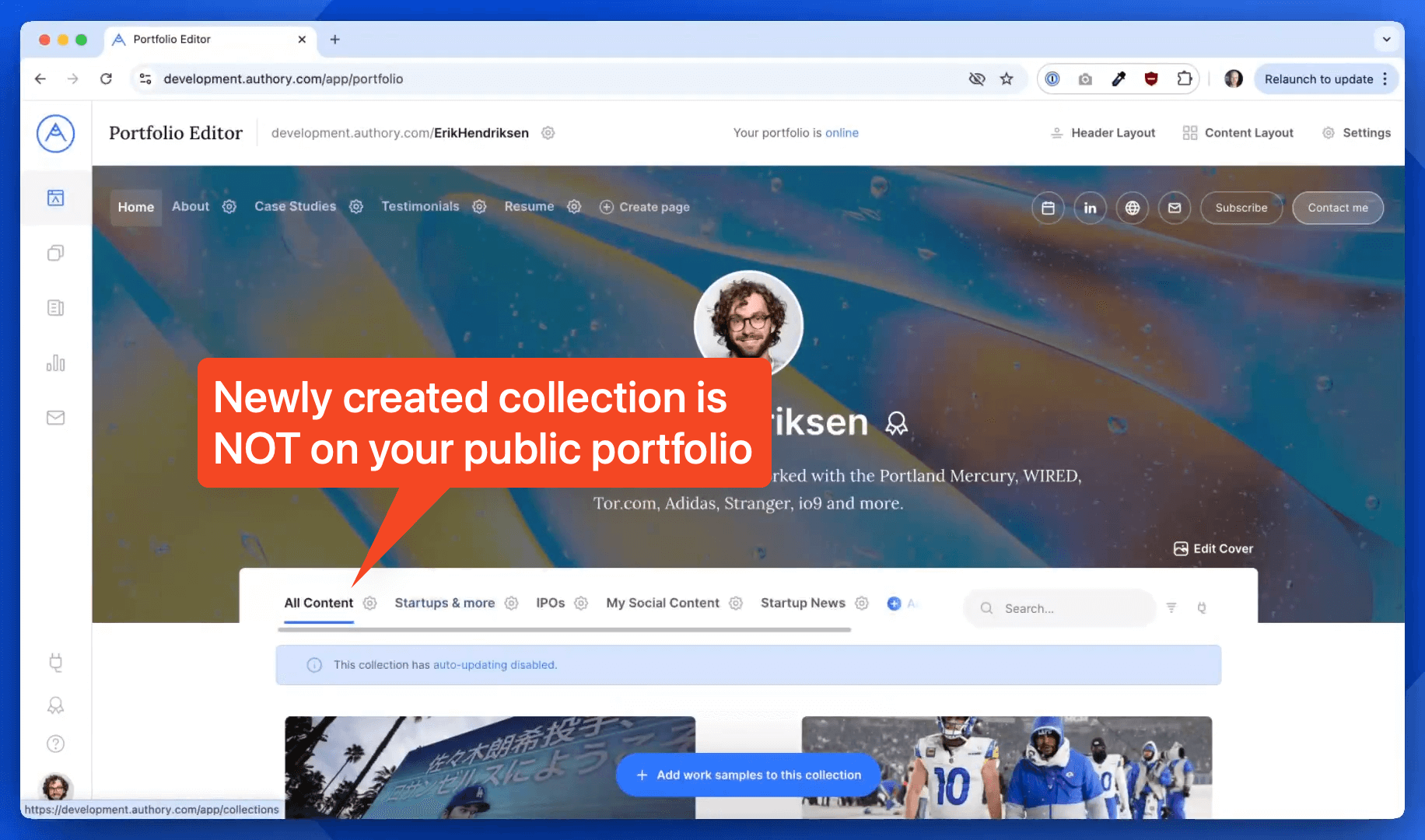
By default, this new collection won’t appear on your public portfolio unless you explicitly add it there.
To double-check:
- Visit your Portfolio Editor
- Make sure the collection doesn’t appear in the layout
If it’s not there, it won’t be publicly visible
Step 4: Share the Collection Privately
To generate a private share link:
- Go back to the collection in your Collections tab.
- Click on the collection.
- Click Create Share Link in the top-left corner.
Copy the URL.
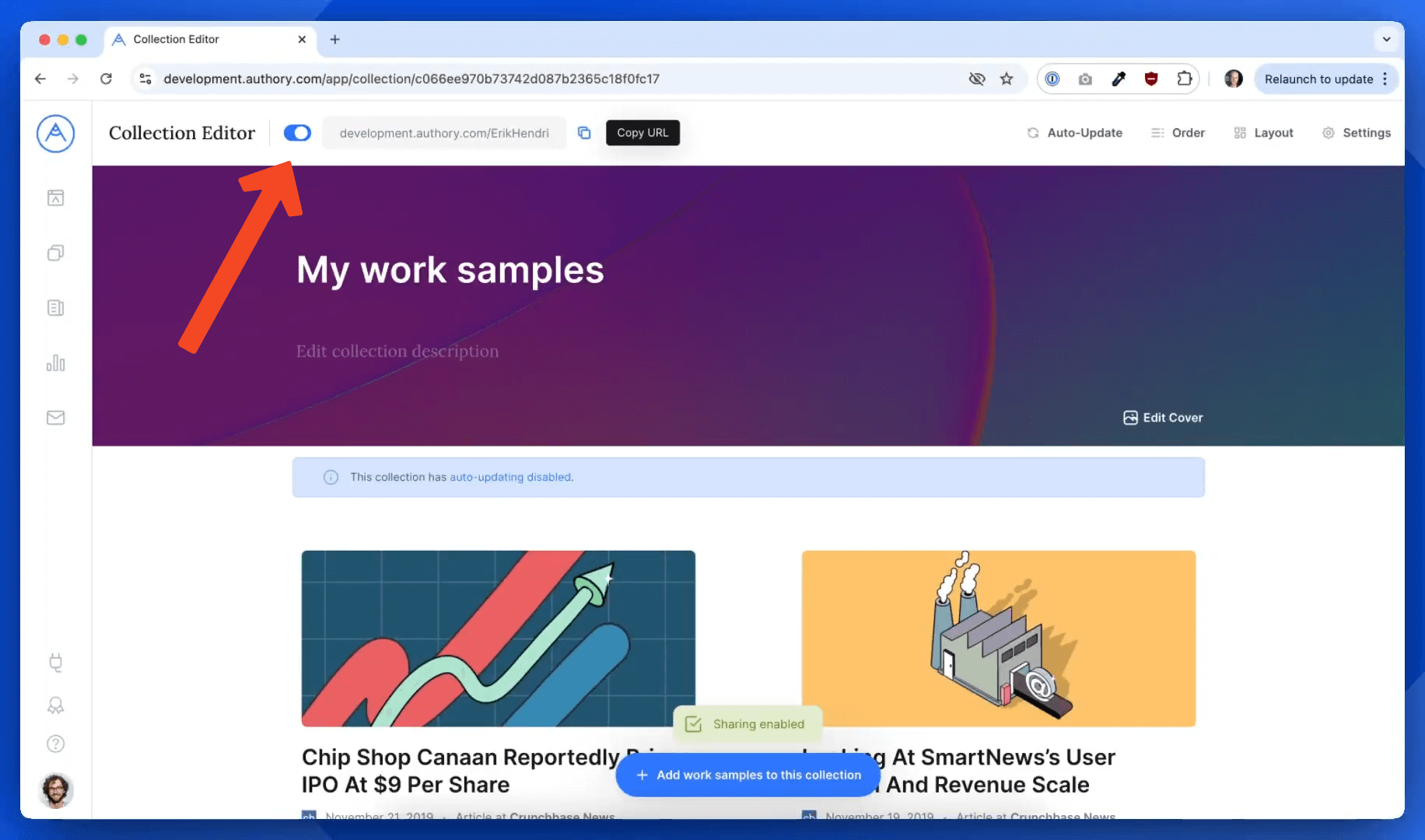
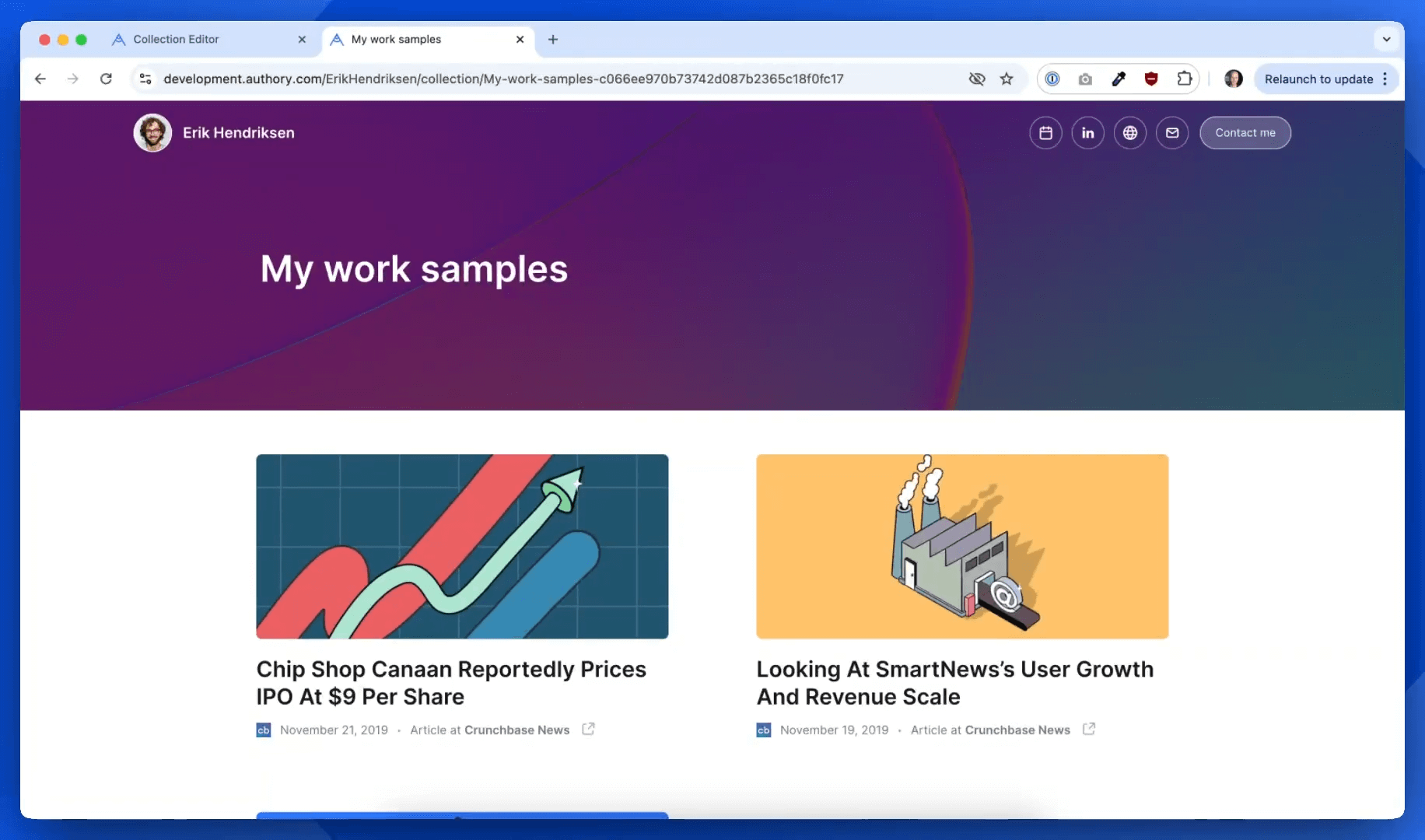
Anyone with this link will see a nicely formatted view of your collection, complete with your branding and the selected work samples, but only if they have the link.
Step 5: Disable the Link Anytime (Optional)
To revoke access:
- Go back to the same collection
- Disable the share link
Once disabled, the link will no longer work.
Optional: Customize the Collection’s Style
You can further personalize the look of this standalone collection, just like your public portfolio — from branding to layout preferences.
That’s It!
You now have a private, shareable link to a curated set of work samples — perfect for pitching editors, sending to potential clients, or sharing confidentially.
Still need help? Visit our Help Center or reach out to hello@authory.com.
