
Project management tools help entrepreneurs organize and streamline their business’s projects, tasks and schedules. In a crowded sea of software solutions, Asana and Trello are two popular project management options.
But which one is best for your projects? By thoroughly reviewing each platform’s features and making sure that they align with your needs, you can confidently select a clear winner.
Let’s compare Asana vs. Trello, highlighting where they shine alongside any shortcomings.
Asana pricing
Asana offers three membership tiers geared toward individuals and small businesses and two enterprise plans for larger organizations. Plans are priced on a per-user, per-month basis. Here’s a synopsis of Asana’s three small-business plans:
- Personal plan ($0/month): This free-forever plan includes unlimited projects, tasks, messages and activity logs. You can view your information as a list, calendar or board. Over 100 free integrations are available, connecting Asana to programs like Google Drive and Microsoft 360.
- Starter plan ($13.49/month): This plan adds Gantt and timeline views as options. Project reporting features provide a customized dashboard of charts, milestones and custom fields. Users can add 250 automations to workflows per month and access Asana Intelligence, an AI feature.
- Advanced plan ($30.49/month): This plan includes all of the above and helps businesses create sophisticated workflows with over 25,000 allowed monthly automations. Advanced dashboard customization and time-tracking capabilities are available as well.
You can choose annual billing (rather than monthly) to get more value from your subscription. This drops the monthly price of the starter plan from $13.49 a month to $9.99 a month, and the advanced plan drops from $30.49 a month to $24.99.
For those interested in Enterprise plans, you can contact the Asana sales team for a custom quote.
Trello pricing
With Trello, you can choose between four pricing tiers, each price quoting a “per-user” fee:
- Free plan ($0/month): The free plan offers unlimited Trello cards and 10 Trello boards. You’ll get unlimited storage for files under 10MB and customization options. This plan also offers 250 Workspace command runs per month for workflow automation.
- Standard plan ($6/month): For this plan, file size storage increases to 250MB per file. It includes unlimited boards and an upgrade to 1,000 workspace command runs each month and adds custom field options.
- Premium plan ($12.50/month): Trello’s premium plan targets teams that manage multiple projects simultaneously. This tier adds timeline, calendar, map, dashboard and table views. It also offers unlimited workspace command runs. Access to Atlassian Intelligence technology can help users generate and refine content with AI right in Trello’s interface.
- Enterprise plan ($17.50/month for 50 users; price is scaled down as number of users goes up): This plan works for businesses that need to collaborate across teams. It offers full organization management permissions, unlimited workspaces and public board management in addition to the above-mentioned plan features.
Similar to Asana, choosing annual billing is a good option for those who want to save money on subscription costs — the standard plan drops to $5 and the premium plan is reduced to $10.
Verdict: Trello wins with more affordable premium options
Trello’s plans provide better value for budget-conscious businesses. Trello’s plans are about half the price of Asana’s, making them more accessible for a solopreneur or small business.
The paid Trello plans also offer more types of views than Asana’s paid plans do, providing better overall functionality at the price point.
Project management features
Asana and Trello are more than catch-alls for notes and project details. They have powerful features to help teams collaborate, track progress and stay on target.
Here’s a quick rundown of the most notable features of each program:
Asana
Asana organizes information into goals, portfolios, projects, tasks and subtasks. On one end of the spectrum, a goal represents a culminating objective. Conversely, a subtask represents the smallest real-time action that can be taken on a project.
With its multi-homing feature, Asana allows you to create tasks that exist in several different projects at once, avoiding repetition and allowing cross-team collaboration.
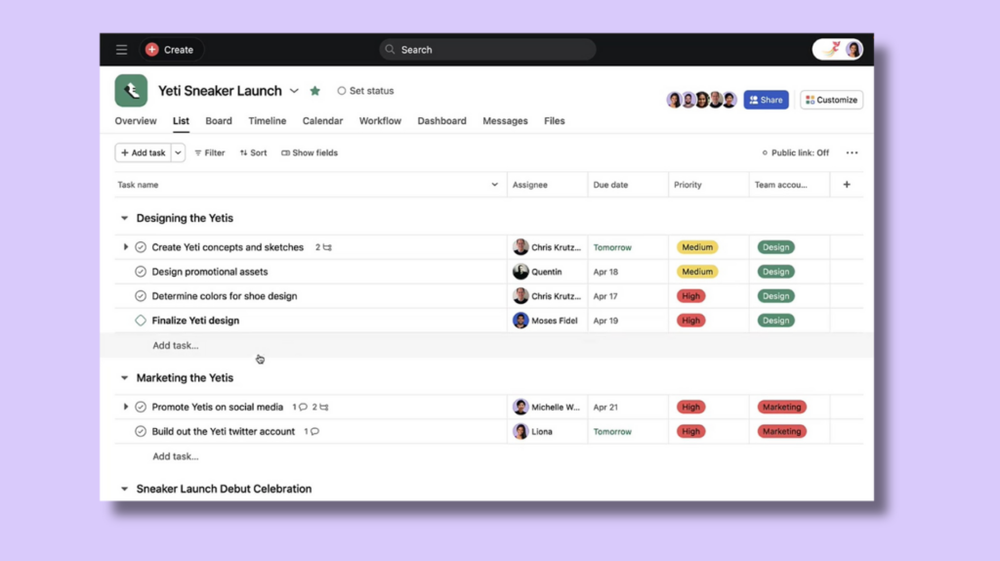
Here are a few features that are included in the Asana dashboard that help with project management:
- List, board and timeline views
- Workflow views
- Analytics dashboard
- File and attachment database
- Filtering, sorting and grouping options
Many users enjoy Asana’s easy-to-navigate interface and the ability to filter by specific projects, which reduces clutter and helps users focus on projects.
Trello
Trello’s primary feature is its Kanban-style board, which is available to all users. Paid plans offer additional view displays such as table, map, dashboard and calendar. This allows users to select views highlighting important factors such as task progress and deadlines.
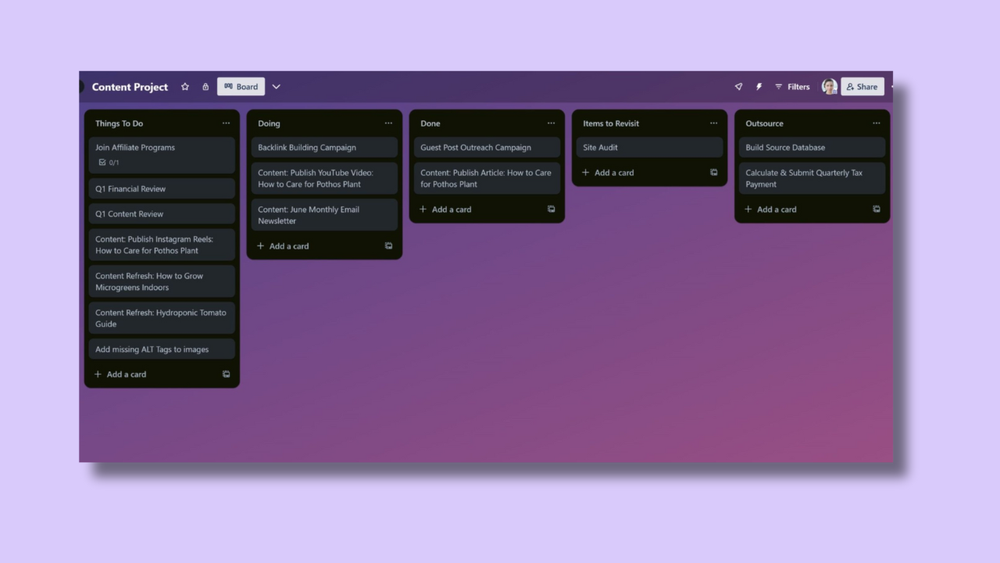
Each board hosts a series of cards that sit beneath a category section. Cards represent ideas or tasks that can be customized with the following features:
- Create text and color-coded labels
- Add and transfer checklist items
- Attach files and links
- Add a cover photo to a card
- Invite members to join a card
- Create a dropdown list and additional custom fields
- Set a deadline and reminder for a task
- Create a reusable template
Trello’s visual drag-and-drop design is ideal for users seeking a clear picture of project operations. However, users report that Trello boards can be hard to search and can feel cluttered for more comprehensive projects.
Verdict: Asana wins with its multi-tiered task system
If your team needs meticulous and accurate project tracking tools, Asana is your best bet. With its organizational hierarchy ranging from broad goals to laser-focused tasks, tracking projects at every point along the progress line is easy.
Collaboration tools
While Asana and Trello are suitable for solo users, one of their key attributes is functionality that helps teams communicate within one program.
Here’s what you need to know about collaboration features within each project management tool:
Asana
You can easily add a user to your Asana workspace by selecting the team overview page and adding an email address. You can add users by selecting the “+” at the bottom of the task window. And any time you “@mention” a user in a comment, they will be added as a collaborator.
You can also mention projects or tasks directly in Asana (in messages or comments), reducing the need to search for and reference external documents. Your team can view due dates on Asana’s calendar for a visual snapshot of collaborative projects.
Trello
You can add a user to a Trello board by searching for their name or email and sending an invite. It’s fairly intuitive to add a new user to a Trello card. Simply click the “Members” button in the upper right-hand corner of an opened card and quickly add team members to a task.
Trello’s paid plans include advanced checklists and custom fields that enhance collaboration. Teams can add due dates, assign members to tasks and customize fields within boards, creating user-friendly workflows.
Verdict: Trello excels with advanced features
Trello’s collaboration offerings come out slightly ahead, as the ability to customize checklists and fields makes it easier for teams to fine-tune project management workflows to their specific needs.
However, if you’re going with a free plan, Asana may be a better choice due to its robust “mention” system that keeps teams unified and updated.
Ease of use and customer support
Asana and Trello are both well-known, but are they easy to use? Here’s our take based on current features, third-party user review sites and customer support channels:
Asana
There are mixed reviews on Asana’s ease of use. On one hand, many new users say they pick up the program quickly and appreciate the well-organized visual interface. However, a good number of users mention a steep learning curve, which may be more challenging for those new to project management software.
Luckily, the Asana Academy provides in-depth training for new and mid-level users who want to dive deeper into the program. It offers courses, live training events, use cases, video tutorials and a community forum for support.
Asana’s customer support team is hit or miss for users. While many users report fast and helpful support, others state they had to wait longer than usual for their inquiries to be addressed.
Trello
Trello is touted as a very easy tool to navigate and onboard with; in fact, ease of use is the most reported pro of the platform among users. If you’re new to the program, users say the tool’s simplified dashboard and visual display are pretty easy to pick up.
You don’t even have to build your Trello boards from scratch. The Trello template gallery has predesigned selections in categories such as personal productivity, project management and sales operations.
Trello’s YouTube channel offers over 100 helpful training videos, ranging from introductory walkthroughs to workflow optimization tips. You can also visit Trello’s support center for a knowledge base and a community forum.
Users report reliable and expert-run customer support teams. Once logged in to your account, you can contact Trello’s agents via chatbot, phone call or email.
Verdict: Trello provides an easily accessible user experience
Trello is the clear winner in this category, as its straightforward software is much easier for new project managers to get started with. Trello also wins in the customer support lane, with most customers reporting superb and productive interactions with agents.
Reporting and analytics
Let’s compare Asana and Trello reporting and analytics features and see how they stack up to each other:
Asana
Asana’s reporting dashboard is available on all paid plans and offers a clear snapshot of your projects’ inner workings, including visualizations through graphs and charts. You can monitor tasks in progress, overdue tasks and total tasks. Users can set custom filters on each of these metrics so they spotlight your most relevant metrics.
You can track your overall task completion rate and use Asana’s workload management tool to make sure tasks are evenly distributed and that team members have a balanced workload assigned.
With the Starter plan, you can track all of these metrics in a single project. If you want to track data across multiple projects, the advanced plan can provide this functionality, as well as more advanced reporting metrics and integrations with Tableau and Power BI. Free plans don’t offer these tools, but you’ll have basic reporting abilities such as status updates and the ability to export projects as CSVs or PDFs.
Trello
Premium users and their guests have access to Trello’s dashboard view, which visualizes basic data such as:
- Due dates
- Assigned cards
- Cards per list
These features help you gain insights into the progress of any given project and the workload distribution across the team. However, many users think Trello’s reporting and analytics tools may not be robust enough for teams needing deeper data visualization.
Free and Standard Trello members won’t be able to access native reporting and analytics tools. Instead, you can use power-ups to expand this functionality. Power-ups are similar to integrations and add third-party services and features directly into your Trello boards.
Verdict: Asana wins with its sleek reporting dashboard
Asana’s reporting tools in its paid plans are more in-depth than Trello’s, and they’re sleekly displayed in bar graphs, pie charts and line graphs that make it easy to get a high-level view of project management operations.
Add-ons, apps and integrations
If your project operations are spread across various programs, integrations can help connect data and tools for a unified workflow.
Both Asana and Trello offer integrations. Let’s take a look at which programs they integrate with and how to implement them:
Asana
Asana allows users to connect their software to over 200 third-party services through integrations. Popular file-sharing integrations include DropBox, Google Drive and OneDrive. Communication connections include Mailchimp, Zoom, Slack and Microsoft Teams.
These integrations help keep messages and files centralized without leaving Asana’s dashboard.
Users are happy with Asana’s integration options and report that they can seamlessly connect most of their programs to the software.
Trello
Trello offers over 200 apps in 11 categories, spanning personal and professional tools. Popular options like Slack, Google Drive and Salesforce are available, and all members (including free access) have unlimited integrations or “power-ups.” But keep in mind that some of these third-party add-ons may charge an additional fee.
Verdict: Asana offers users the best integration experience
While Trello has plenty of helpful integration options, Asana offers 100-plus free integrations for all plans, while some of Trello’s integrations cost extra. The ability to create customized integrations, apps and automations within Asana also gives this program an edge.
Summary: Asana takes the win with its comprehensive features
In general, Asana is the superior choice when it comes to choosing a new project management tool. It has a feature-rich project dashboard that can quickly and easily tag projects, tasks and team members for a connected experience.
While it doesn’t win for ease of use, the Asana Academy provides step-by-step support for new users.
When should you choose Asana?
Asana is best for complicated projects and large teams. You can partition projects and tasks so only select team members can see them, which means that the project workflow will appear more organized and relevant to users.
When should you choose Trello?
Trello is an ideal choice for those who want a project management system that is easy for everyone to use, at a low price compared to other project management tools. It’s also a good option for small teams such as nonprofit organizations and solo entrepreneurs.